Quick Issue to Staff
This process allows a site to issue an item to a staff member, in the
status of "In Use."
Issue an Item to a Staff Member
- Click on Issue
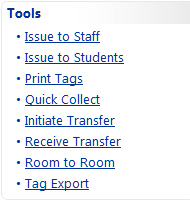
to Staff, located in the Quick Links Tools
menu.
In
the Staff ID field, enter
or scan the staff's ID number.
If you don't have a staff ID barcode to scan or the staff ID available,
click on  Search
to filter for and select the desired staff.
Search
to filter for and select the desired staff.
Click
on the  Calendar
Control icon next
to the Due Date field
to select a due date.
Calendar
Control icon next
to the Due Date field
to select a due date.
Click
on the  Lock icon to secure the
due date.
Lock icon to secure the
due date.
In the Tag
field, enter or scan the tag number to be issued and click on  Save.
Save.
5.A
The
Staff to Staff Transfer Confirmation
window will open if the Tag is issued to another staff member.
5.B. Review
and Confirm
- If there are accessories which are required
to be issued at the same time as this tag, they will be displayed.
To issue the tag and the required accessories, click on
Issue.
- The Current
Inventory for this staff member is displayed in the bottom
grid. It will display all of the tags issued to this staff member.
- If a Transaction
Receipt is desired for this transaction, click on
 View to open the receipt
as a PDF. Use the PDF reader's controls to print the receipt out.
View to open the receipt
as a PDF. Use the PDF reader's controls to print the receipt out.
- Click
 to
exit the Issue Inventory
screen.
to
exit the Issue Inventory
screen.
NOTE:
If multiple tags are to be issued to the same staff member, select the
 Lock icon next to the Staff
ID field. This allows you to scan all of the tag numbers
without entering the same staff member's ID for each tag.
Lock icon next to the Staff
ID field. This allows you to scan all of the tag numbers
without entering the same staff member's ID for each tag.
Today's Transaction Receipt
only displays the items which have been issued or collected today. All
other items on the staff member's account, including those items issued,
transferred or collected today, are available on the Full
Transaction Receipt.
If the tag(s) issued to the staff member are an Asset
Type of Component or Parent, an additional warning screen
will display to verify the transaction. Review Components Overview for
more details.
The Due
Date field is an optional field. When the staff ID is entered, the
cursor will skip to the Tag field. Click on the calendar control to populate
the Due Date. Due dates cannot be entered manually. They must be entered
using the calendar control.
When
the Due Date is equal to
today’s date, a small alert icon is placed next to the date. When the
Due Date is past due, the
text will turn red.
In the Staff
to Staff Transfer Confirmation window when the Due Date is
past due, text will be displayed below the grid stating the tag is past
due and the due date.